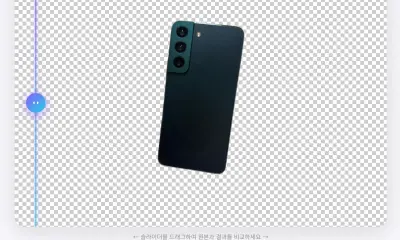
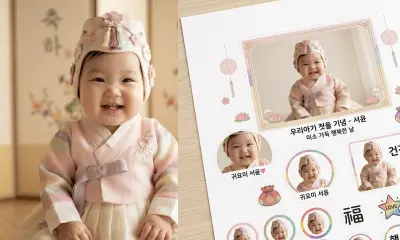
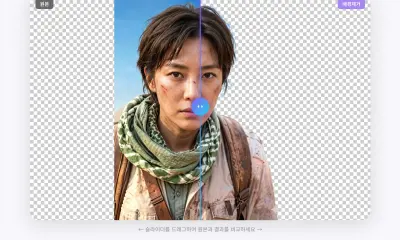
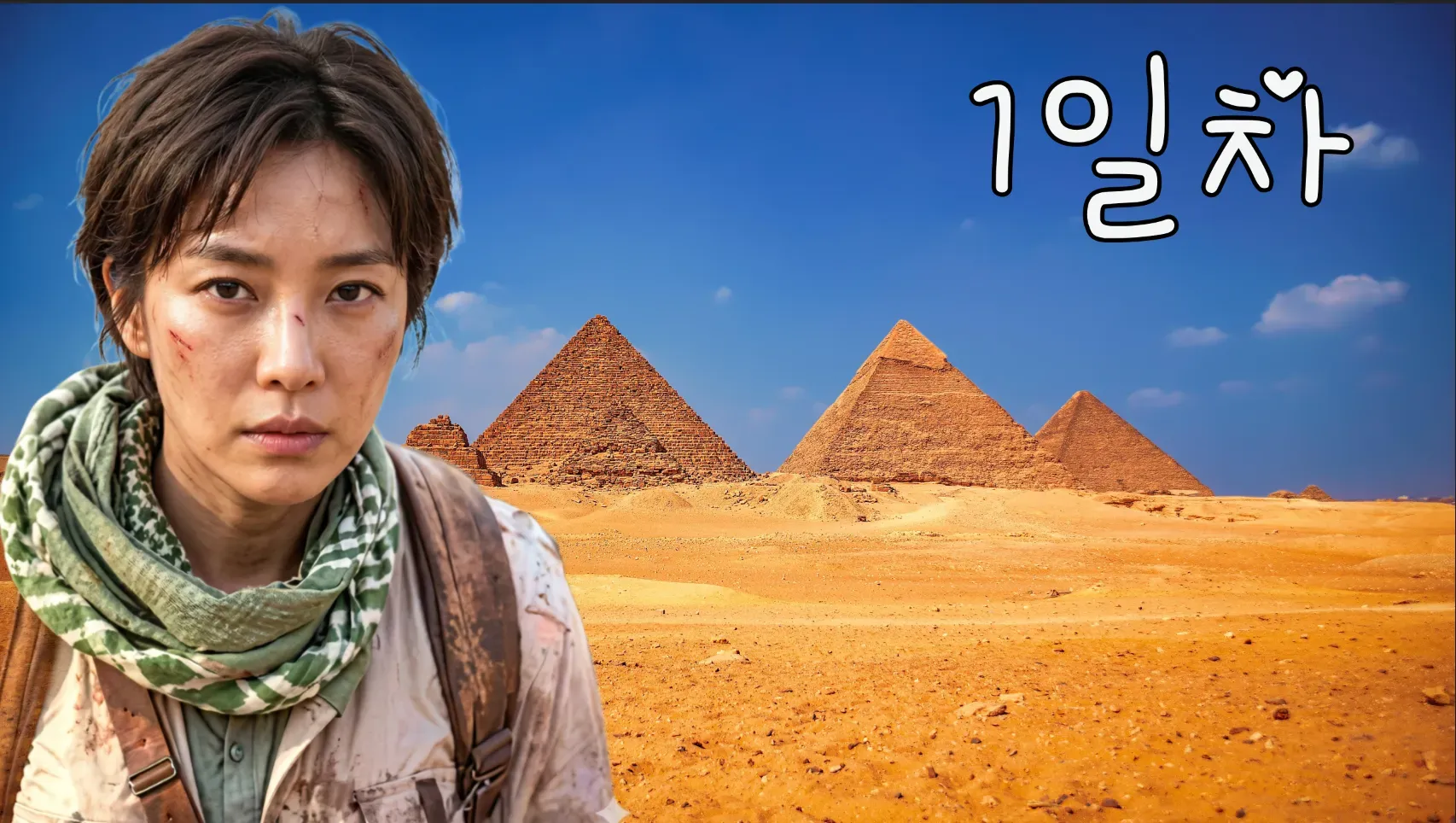
Strong YouTube thumbnails usually have a clear subject, simple composition, and high contrast. One common workflow is to cut out a person or object, then place that transparent PNG on a more dramatic background.
You can do the cutout step with Nukkimon, then finish the design in Photopea, Canva, Figma, Photoshop, or another editor.

1. Choose a thumbnail source image
Pick a frame or photo where the subject is clear. Good thumbnail cutouts usually have:
- a strong facial expression or action pose
- enough resolution for a large thumbnail
- visible arms, object, or product shape
- contrast between subject and background
- minimal motion blur
If you use someone else’s image, make sure you have the rights to use it. Background removal does not remove copyright or publicity rights.
2. Remove the background
Open Nukkimon, upload the image, and let AI remove the background.
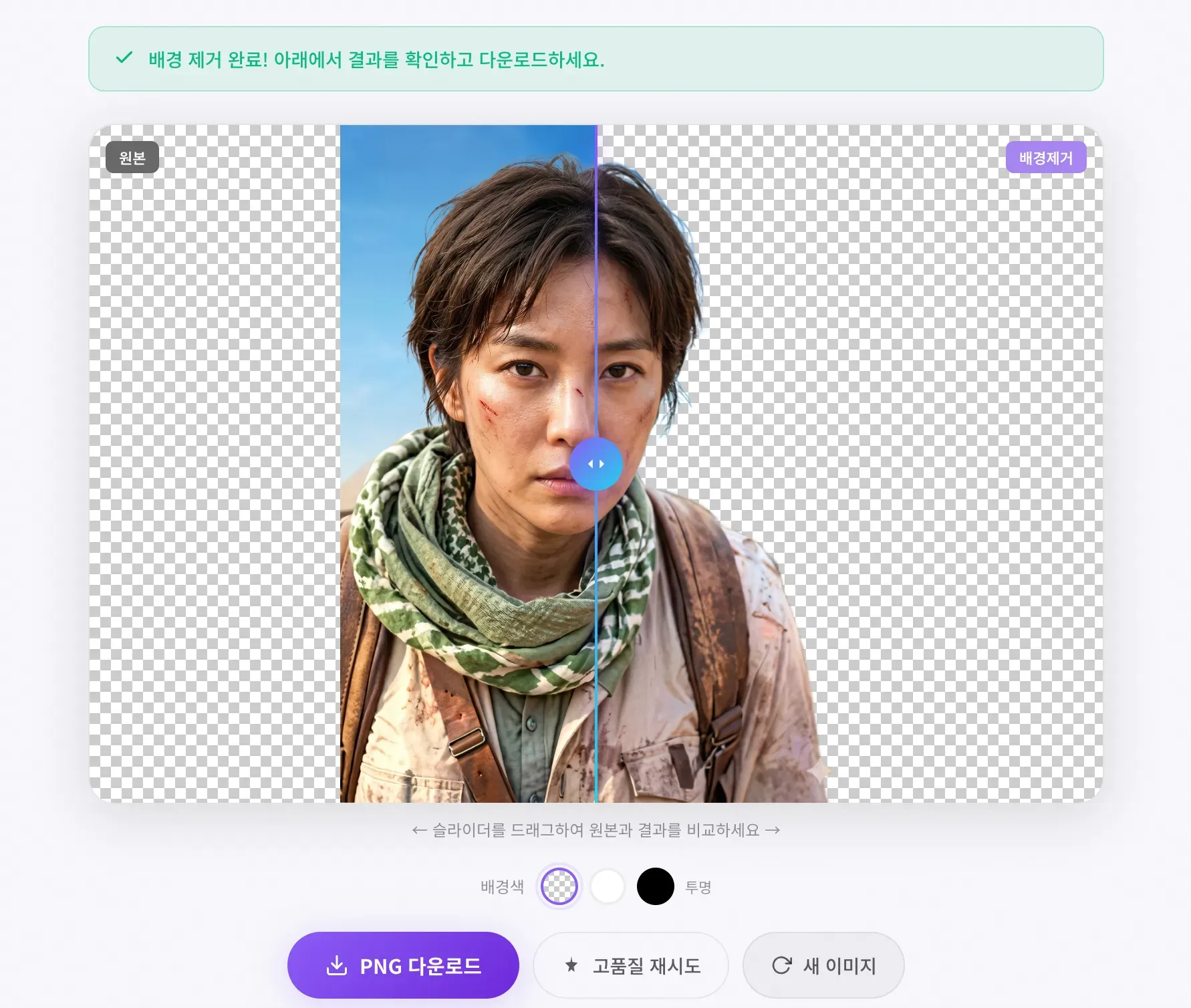
Download the result as a transparent PNG. If the edge around hair, hands, or clothing looks rough, use the eraser editor before exporting.
3. Prepare a stronger background
A thumbnail background should support the subject, not compete with it. You can use:
- a simple gradient
- a blurred screenshot
- a product image
- a bright color block
- a scene related to the video topic
Keep the background readable on small screens. Most viewers will see the thumbnail on a phone.

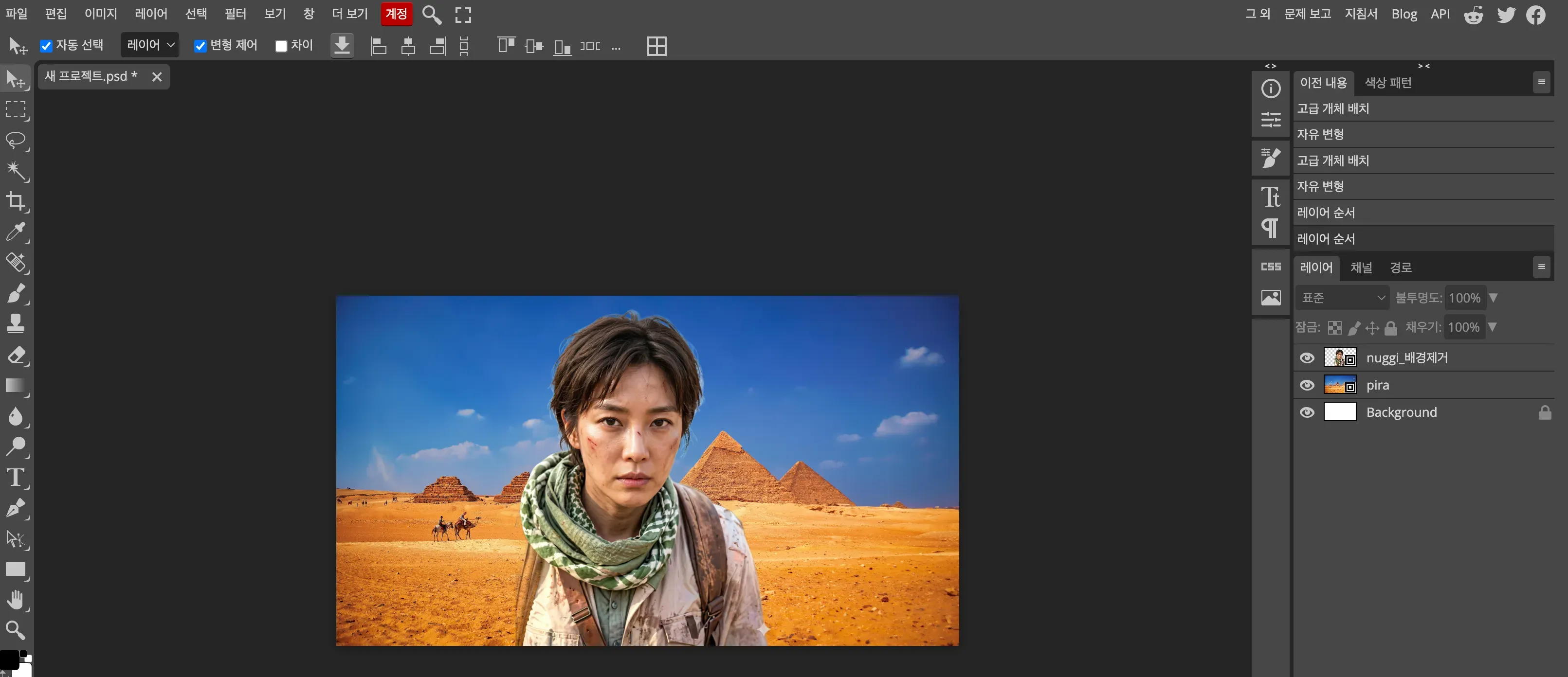
4. Compose the thumbnail in a design tool
Open your transparent PNG in a design tool. Place the subject large enough to be recognizable at small sizes. Then add:
- a thick outline or shadow around the subject
- short text, if needed
- strong contrast between subject and background
- visual focus toward the main idea
Photopea is a free browser-based editor that can handle PSD-style editing.
5. Export and test readability
Export the final thumbnail and view it small. If the subject, text, or object is hard to recognize at phone size, simplify the design.
Good thumbnails are usually clear before they are clever.
Thumbnail checklist
- Is the main subject immediately recognizable?
- Is the background simple enough?
- Is the face or product large enough?
- Does the text still work at small size?
- Are you allowed to use all source images?
- Does the thumbnail accurately represent the video?
Related tools and guides
- Free AI background remover
- Manual eraser cleanup guide
- Can you use a background-removed image commercially?
FAQ
What file format should I use for the cutout?
Use transparent PNG. It keeps the subject separated from the background and works well in most design tools.
Can I make thumbnails without Photoshop?
Yes. You can remove the background with Nukkimon and finish the layout in Photopea, Canva, Figma, or another browser-based editor.
Can I use celebrity or creator images?
Be careful. You need to consider copyright, publicity rights, platform rules, and fair use depending on the exact context.