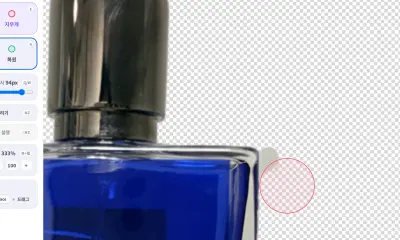
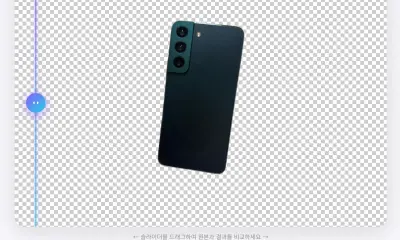
AI background removal is fast, but important images sometimes need a manual pass. Product edges, hair, fur, fabric, and small holes can leave visible artifacts. That is where the eraser and restore brush help.
Nukkimon’s manual editor is designed for quick cleanup after AI removes the background.
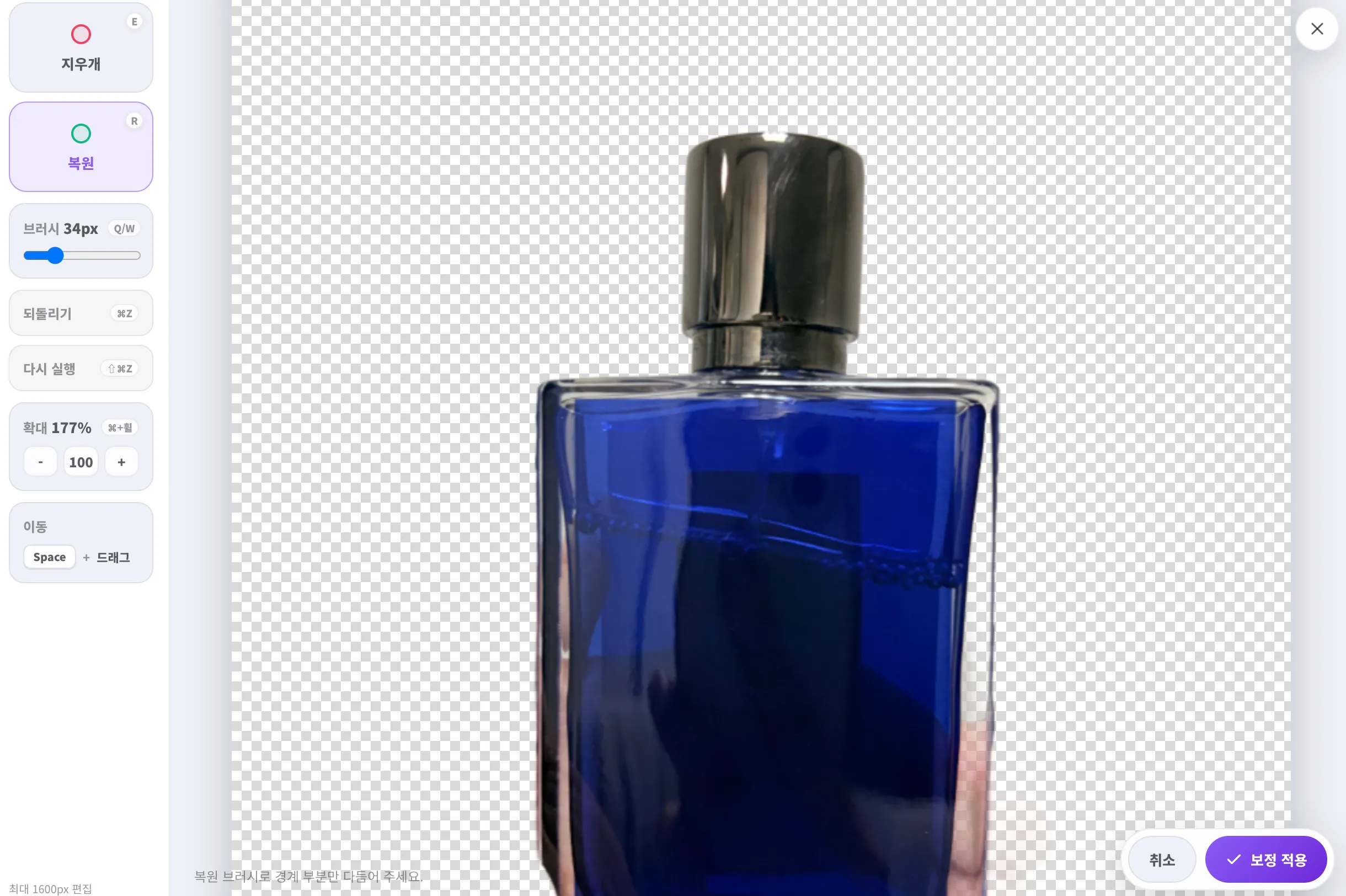
What the eraser does
The eraser removes pixels from the result and makes them transparent. Use it when:
- background remains around the edge
- background remains inside holes or handles
- a white or colored halo is visible
- a shadow or stain should be removed
Start with a medium brush for large areas, then switch to a smaller brush near the subject edge.
What the restore brush does
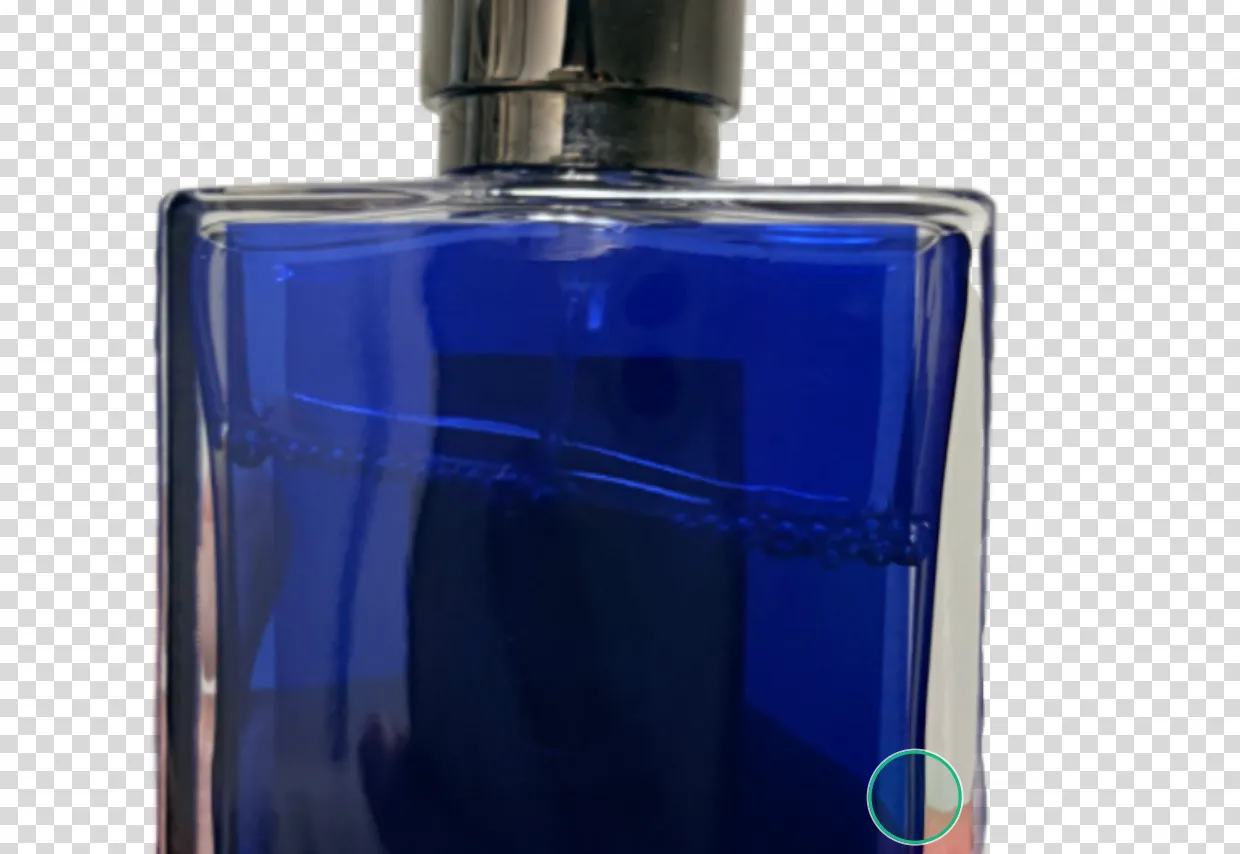
The restore brush brings back pixels from the original image. Use it when:
- AI removed part of the subject
- hair or fur looks too thin
- a product corner is missing
- a thin string, strap, or handle disappeared
Restore only what you need. Bringing back too much can also bring back the old background.
A practical cleanup workflow
- Review the whole image at normal size.
- Remove obvious background pieces first.
- Zoom in around important edges.
- Use a smaller brush near the subject.
- Restore missing parts.
- Check the result on transparent and white backgrounds.
- Download only after the edge looks natural.
This order prevents over-editing and keeps the subject shape intact.
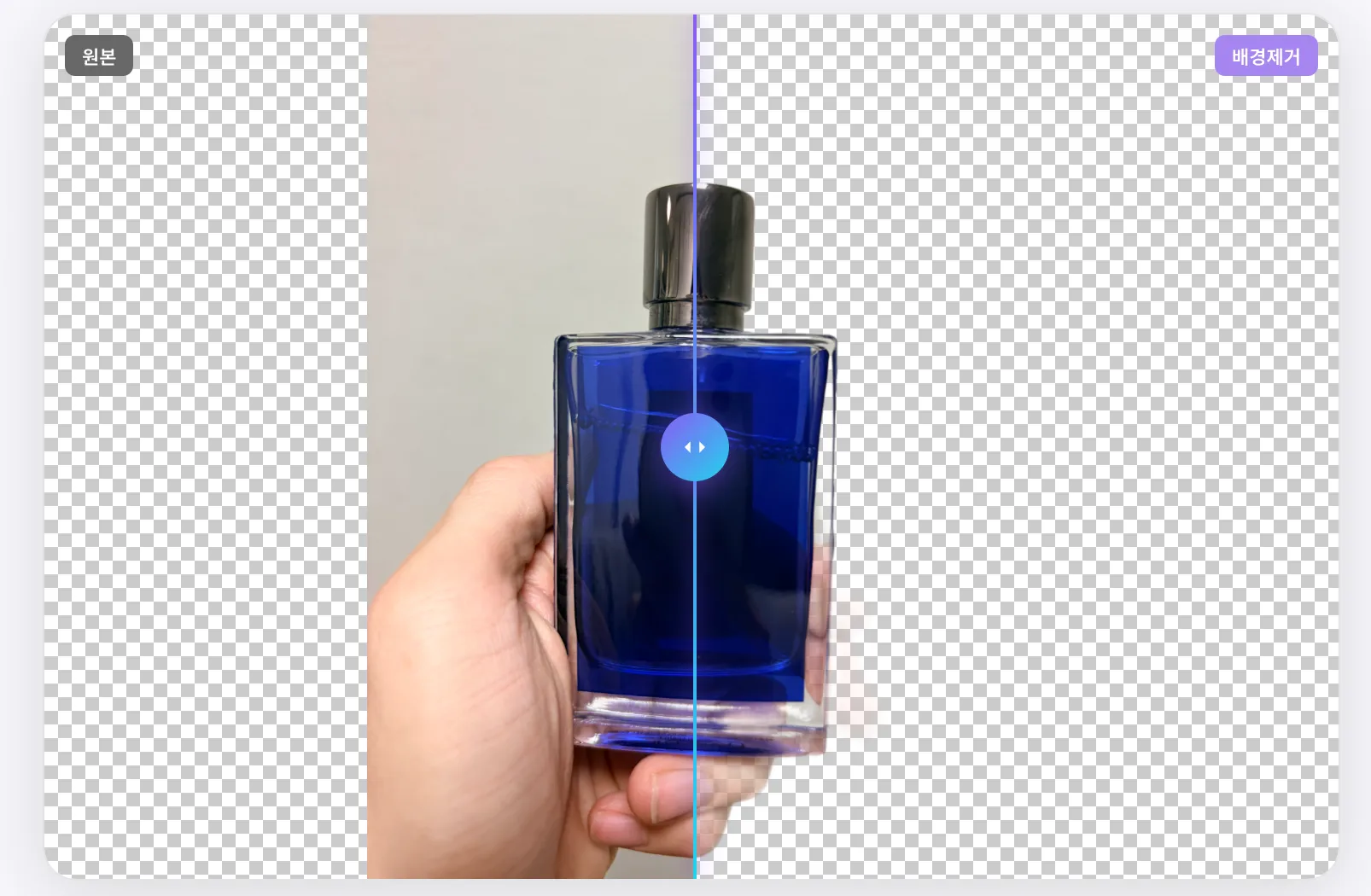
Use before/after comparison
Before downloading, compare the original and result. Look for:
- missing fingers, corners, straps, or hair
- leftover background in small gaps
- unnatural white outlines
- overly sharp or jagged edges
- color contamination from the old background
When not to over-edit
Some photos are difficult because the original is blurry, dark, or low contrast. If you spend too much time fighting the edge, retaking the photo may be faster.
For product photos, a simple background and good lighting usually improve the result more than manual editing can.
Related tools and guides
FAQ
Is manual cleanup required?
No. Many images are fine after AI removal. Use manual cleanup when visible artifacts remain or the image is important.
Can I restore the original background?
The restore brush brings back original pixels where you paint. Use it carefully near the subject so you do not restore unwanted background.
Is desktop better for manual cleanup?
Yes. Mobile works for light fixes, but desktop gives better precision with shortcuts, zoom, and a larger screen.