Removing one background is quick. Removing thirty backgrounds one by one is not. Product photos, thumbnail assets, profile photo candidates, and design materials often require the same edit repeated across many files.
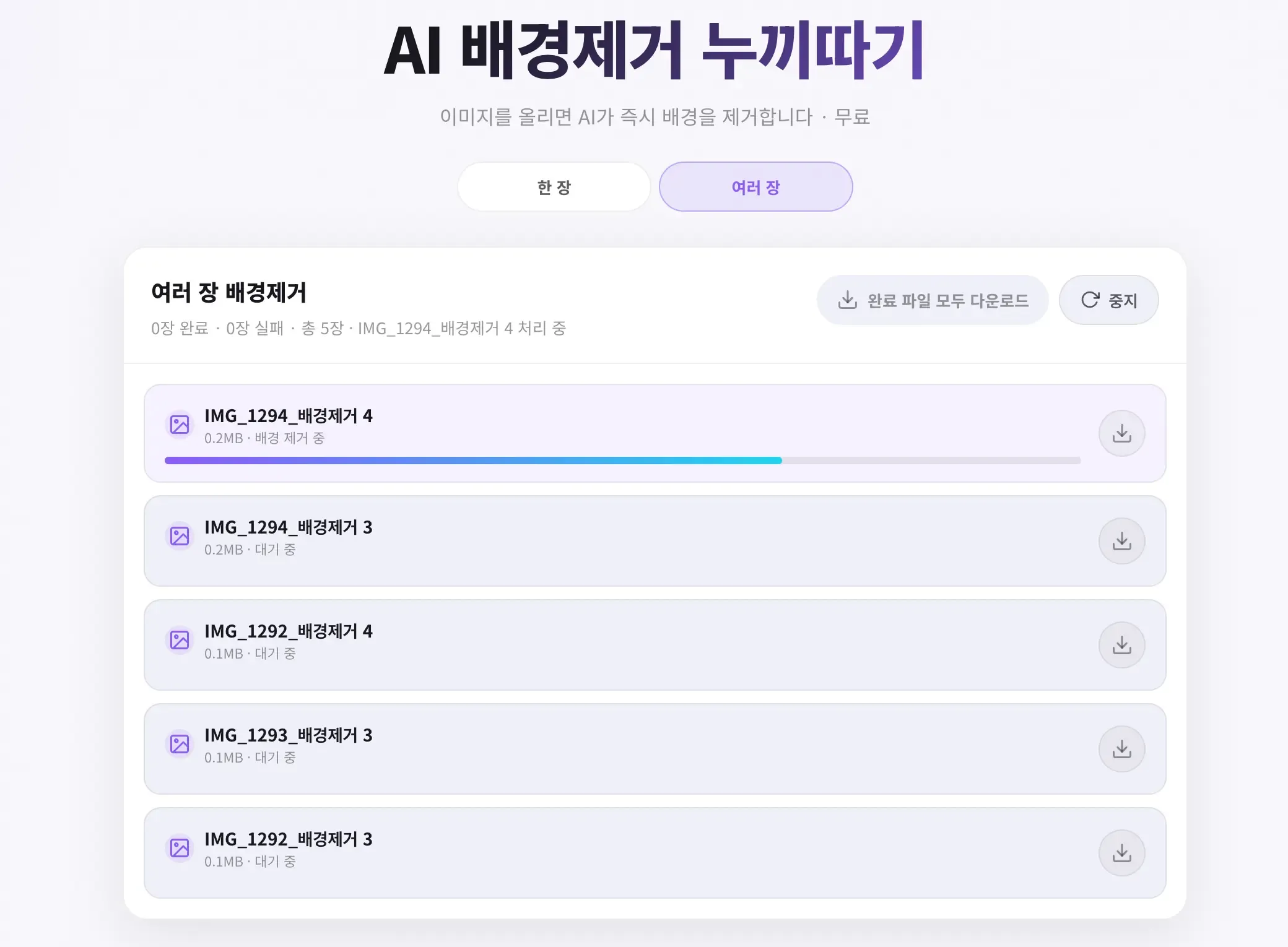
Nukkimon’s batch background removal is designed to reduce that repetition. It still respects browser memory limits, so it processes images sequentially instead of trying to run everything at once.
When batch background removal is useful
Product photos for online stores
If you sell products online, you may need a clean cutout for the main image and several detailed images. Selecting multiple files and processing them in sequence is faster than repeating upload, wait, download, and upload again for every angle.
Before publishing, confirm that you own the photos or have permission to use them. Removing the background does not remove copyright, model release, logo, or trademark issues.
YouTube thumbnails and social graphics
Creators often test several poses, product shots, or object cutouts before choosing the final thumbnail. Batch background removal lets you prepare multiple transparent PNGs first, then choose the strongest image in Canva, Figma, Photoshop, or another design tool.
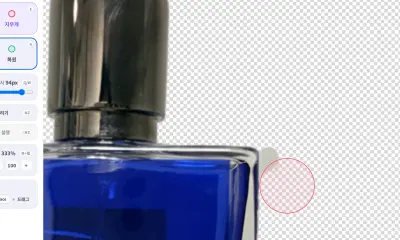
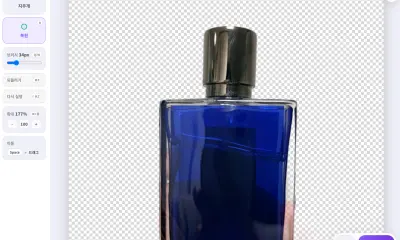
If one image needs extra work, open it in the eraser editor and clean only the problem areas.
Profile photos and resume photo candidates
Profile photos are easier to compare when the background is consistent. Remove backgrounds from several candidates, place them on a white or neutral background, then choose the one that looks most natural.
For resume, passport, ID, or application photos, always check the official photo requirements before submitting.
Nukkimon’s batch processing limits
Nukkimon is designed to process images in your browser. That means images are not stored on our server, but your device memory and browser performance matter.
- Desktop: up to 10 images
- Android: up to 5 images
- iPhone and iPad: one image at a time for stability
If the browser becomes slow, reduce the number of selected files, close unused tabs, or process lower-resolution copies.
How to choose better files
- Choose photos with clear contrast between subject and background.
- Avoid blurry or heavily compressed files.
- Use original camera files when possible.
- Keep shadows and reflections under control for product photos.
- Check photos that include faces, IDs, addresses, or license plates before editing.
The original photo quality has a bigger effect on the result than any setting inside the editor.
What to check after batch processing
Even when batch processing saves time, final review is important. Before using the files, check:
- whether part of the subject was removed
- whether background remains inside holes or near edges
- whether the image looks natural on a white background
- whether the exported file size fits your platform
- whether you have the rights to use the image
For important product listing images, inspect the edge at a larger size and use the eraser if necessary.
Related tools and guides
- Free AI background remover
- Why background removal fails
- Can you use background-removed images commercially?
FAQ
How many images can I process at once?
Desktop supports up to 10 images. Android supports up to 5 images. iPhone and iPad process one image at a time for stability.
Are batch images uploaded to a server?
Nukkimon is designed to process selected images in your browser. Originals and results are not stored on our server.
Should I use batch processing for very large product photos?
You can, but very large images use more memory. If the browser slows down, process fewer images per batch.