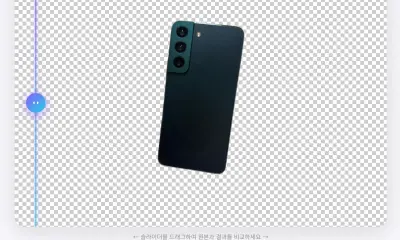
Trying to remove a background in Photoshop can turn into ten minutes of fighting with the pen tool. For many everyday images, you no longer need that workflow. AI background removal can create a clean cutout without installing software, creating an account, or learning a complex editor.
Nukkimon is a free AI background remover designed to process images in your browser. Upload a JPG, PNG, or WEBP image, let AI separate the subject from the background, then download a transparent PNG or choose a white background. If the result needs a small fix, you can refine the edge with the eraser and restore brush.
When background removal is useful
Background removal is useful in more situations than most people expect.
- Product photos: prepare clean images for online shops and marketplaces.
- Profile photos: create a polished photo for social media, resumes, and professional pages.
- YouTube thumbnails: cut out a person or object and place it in a stronger design.
- Presentations and design: export transparent PNGs for PowerPoint, Figma, Canva, or slides.
- Stickers and merchandise: turn a pet, logo, or illustration into a transparent source file.
- Composites: replace a distracting background with a cleaner scene.
The goal is simple: keep the subject, remove the visual noise, and export a file that is easy to reuse.
How to remove a background with Nukkimon
1. Select an image
Open Nukkimon, then drag an image into the upload area or click to choose a file.
Supported input formats are JPG, PNG, and WEBP, and each file can be up to 20MB. High-resolution phone photos usually work well, as long as the subject is in focus.
Desktop browsers can process up to 10 images in a batch. Android supports up to 5 images. iPhone and iPad process one image at a time for better stability.
2. Let AI remove the background
After you select the image, AI analyzes the subject and removes the background. The workflow is designed to run inside your browser, so your original image is not stored on our server.
If the photo includes faces, IDs, addresses, license plates, or other private details, review the image before using any online tool. Browser-based processing helps, but careful file selection still matters.
Processing usually takes a few seconds, depending on image size, device performance, and how complex the subject is.
3. Review, refine, and download
When the result appears, choose the output you need:
- Transparent PNG for design, compositing, thumbnails, and product cutouts.
- White background PNG for profile photos, listings, and documents that require a clean background.
AI results depend on the original photo. Hair, glass, shadows, and low-contrast edges can need manual cleanup. Click Refine with eraser to remove leftover background or restore parts of the subject that were accidentally removed.
When batch background removal helps
Batch processing is useful when you need the same type of edit repeatedly:
- product images from several angles
- thumbnail source images
- profile photo candidates
- slides or landing page visuals
- pet photos or sticker source files
Because the AI model runs in the browser, high-resolution batches can use a lot of memory. If your browser slows down, process fewer images at once or close unused tabs before trying again.
When manual eraser refinement is worth it
AI background removal is fast, but it is not magic. Use the eraser editor when:
- background remains inside holes, handles, or product gaps
- hair, fur, strings, or fabric edges look rough
- a small part of the subject was removed
- white outlines appear around the edge
- the image will be used in a product page, ad, resume, or thumbnail
For casual social posts, the AI result may be enough. For commercial or submission use, zoom in and check the edge before downloading.
Tips for better results
- Use a photo where the subject and background have clear contrast.
- Avoid heavy blur or motion shake.
- Choose a simple background when possible.
- Use the original camera file instead of a compressed messenger image.
- Make sure the whole subject is visible and not cropped off.
- For products, reduce harsh shadows and reflections before editing.
Privacy and rights checklist
Background removal changes the image, but it does not remove legal or privacy responsibilities. Before using the result, check:
- Do you own the image or have permission to use it?
- Are people, logos, brands, or characters visible?
- Does the license allow commercial use?
- Does the image contain private information?
- Does the platform you are uploading to have specific image rules?
Nukkimon is an editing tool. You are responsible for confirming the rights and usage conditions of the original image.
Related tools and guides
- Free AI background remover
- Why AI background removal fails and how to get better results
- Can you use a background-removed image commercially?
- Batch background removal guide
FAQ
Is Nukkimon free?
Yes. You can remove image backgrounds without signing up or subscribing.
Can I download a transparent PNG?
Yes. After AI removes the background, you can download the result as a transparent PNG.
Are my images uploaded to a server?
Nukkimon is designed to process selected images in your browser. Originals are not stored on our server.
Can I use the result commercially?
Only if the original image, people, logos, trademarks, and license terms allow that use. Background removal itself does not grant rights.