A resume or application photo can be surprisingly stressful when you need it quickly. Modern phone cameras are good enough for many basic profile photos, but you still need a clean crop, good lighting, and the right background.
This guide explains how to prepare a simple resume-style photo at home and use Nukkimon to replace the background. Always check the official requirements of the place where you will submit the photo.
1. Take a clean source photo
Start with the original photo. Editing cannot fully fix blur, harsh shadows, or poor lighting.

Basic setup:
- Background: stand in front of a plain wall.
- Lighting: face a window or soft light source.
- Clothing: choose a clean shirt, blouse, or jacket.
- Framing: leave enough space above the head and around the shoulders.
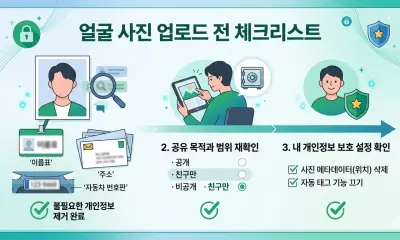
Avoid photos with ID cards, addresses, school names, or other private information in the background.
2. Crop to the required ratio
Many resume and ID-style photos use a vertical portrait ratio, but exact requirements vary by country, company, school, and platform.
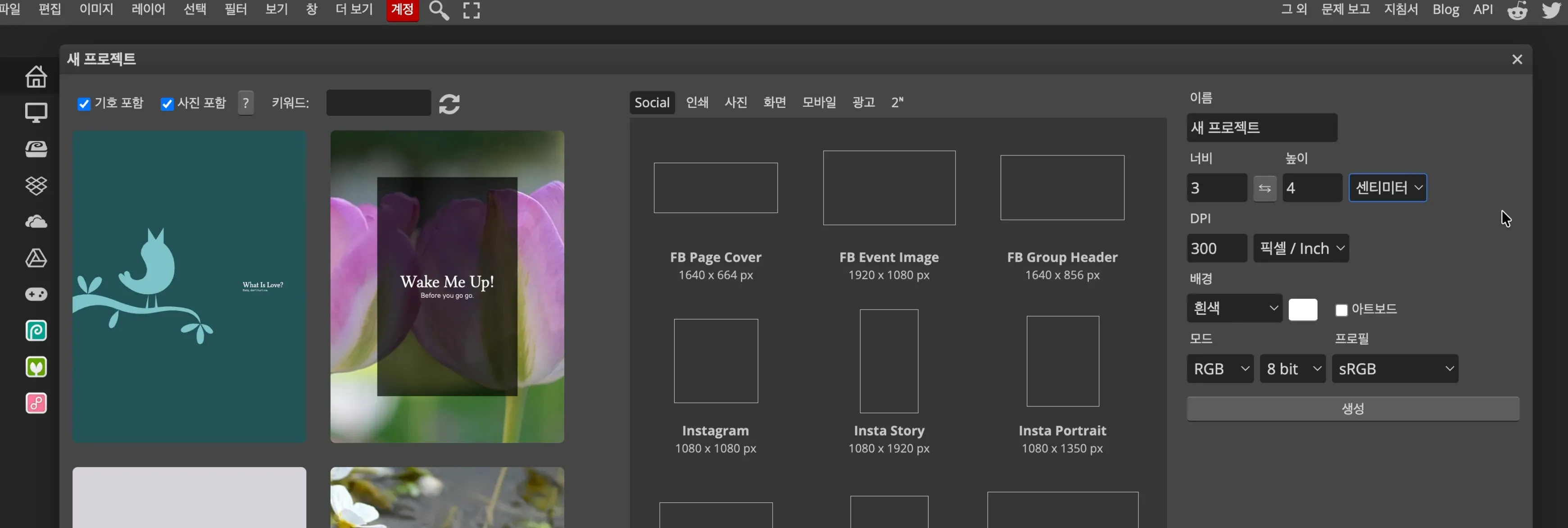
You can crop in Photopea or another editor:
- Open the photo in Photopea.
- Select the crop tool.
- Set the required ratio.
- Center the face and shoulders.
- Export a JPG copy.
3. Remove the background and choose a color
Open Nukkimon, upload the cropped image, and let AI remove the background. Then choose the background color required by your application, such as white, blue, or another solid color.
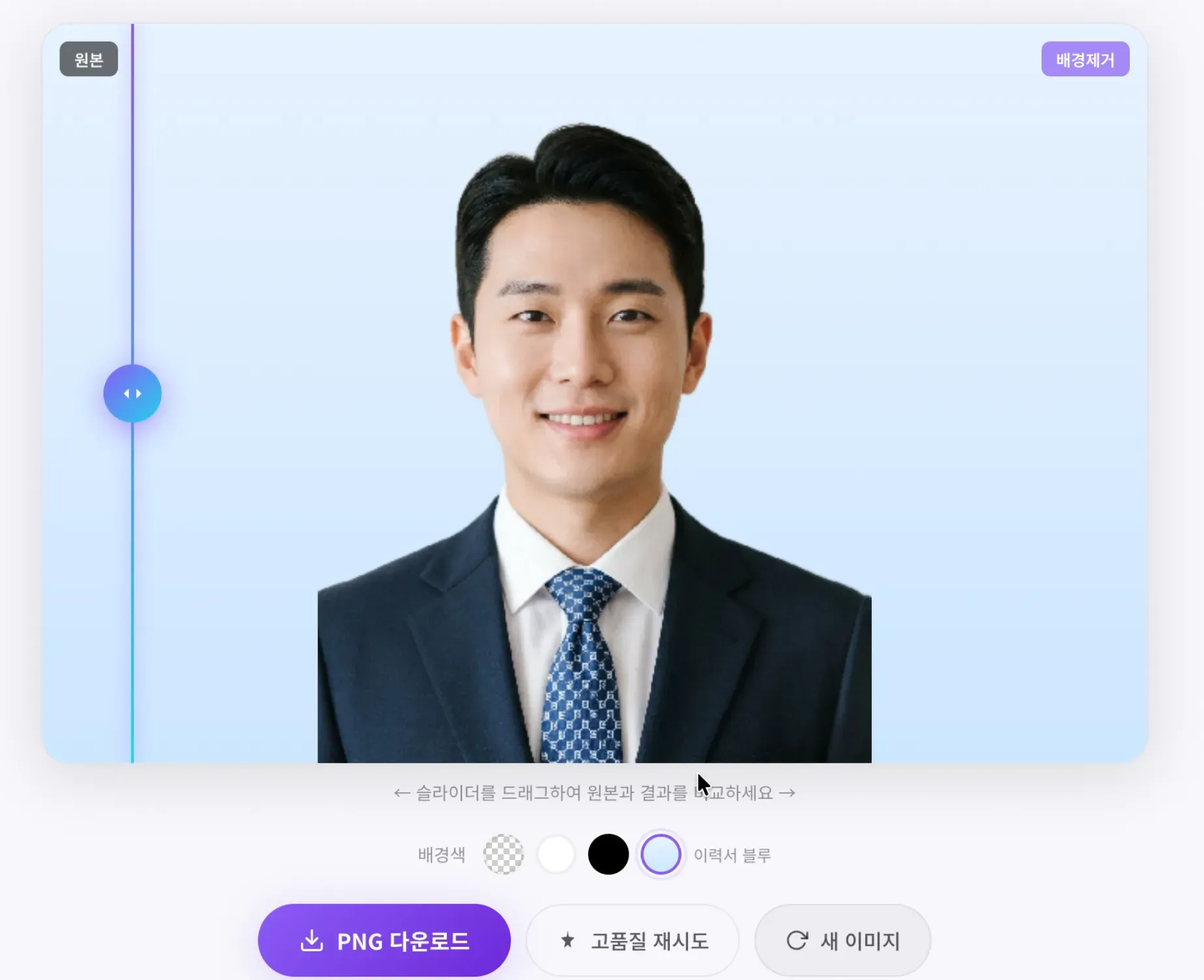
Nukkimon is designed to process images in your browser. Still, face photos can contain personal information, so inspect the original before editing.
4. Check before submitting
Before attaching the file, confirm:
- required size and ratio
- accepted file format
- maximum file size
- background color
- crop around face and shoulders
- whether editing is allowed
Different organizations have different rules. A clean background does not guarantee acceptance.
Quick summary
- Take the photo in good light.
- Crop before removing the background.
- Choose the required background color.
- Check hair and shoulder edges before downloading.
- Confirm the official submission requirements.
Related tools and guides
FAQ
Can I use a phone photo for a resume?
Often yes, if the lighting, crop, and background meet the submission requirements. Check the official rules first.
Should I use JPG or PNG?
Use the format required by the platform. JPG is common for resume uploads, while PNG is useful when you need a cleaner source file.
Can I change the background to blue?
Yes, if the tool offers a suitable color and the organization allows that background color.