Product photo editing can take more time than expected, especially for clothing stores. Fabric edges, straps, fringe, shadows, and model photos often need cleaner backgrounds before they fit a product page.
Nukkimon can remove the background in your browser, then you can refine the result and download a transparent PNG or white-background image.
Why clean product cutouts help
Clean background removal helps online shops because it:
- keeps attention on the product
- makes category pages look more consistent
- creates reusable images for banners and social posts
- reduces visual clutter in product detail pages
- helps shoppers compare color, shape, and fit
For clothing, the goal is not to make the photo look fake. The goal is to remove distraction while keeping fabric shape and detail.
Step 1. Upload the product photo
Open Nukkimon and upload a JPG, PNG, or WEBP image. Files up to 20MB are supported.

Step 2. Let AI remove the background
AI detects the subject and removes the background. The workflow is designed to run in your browser, so the original image is not stored on our server.
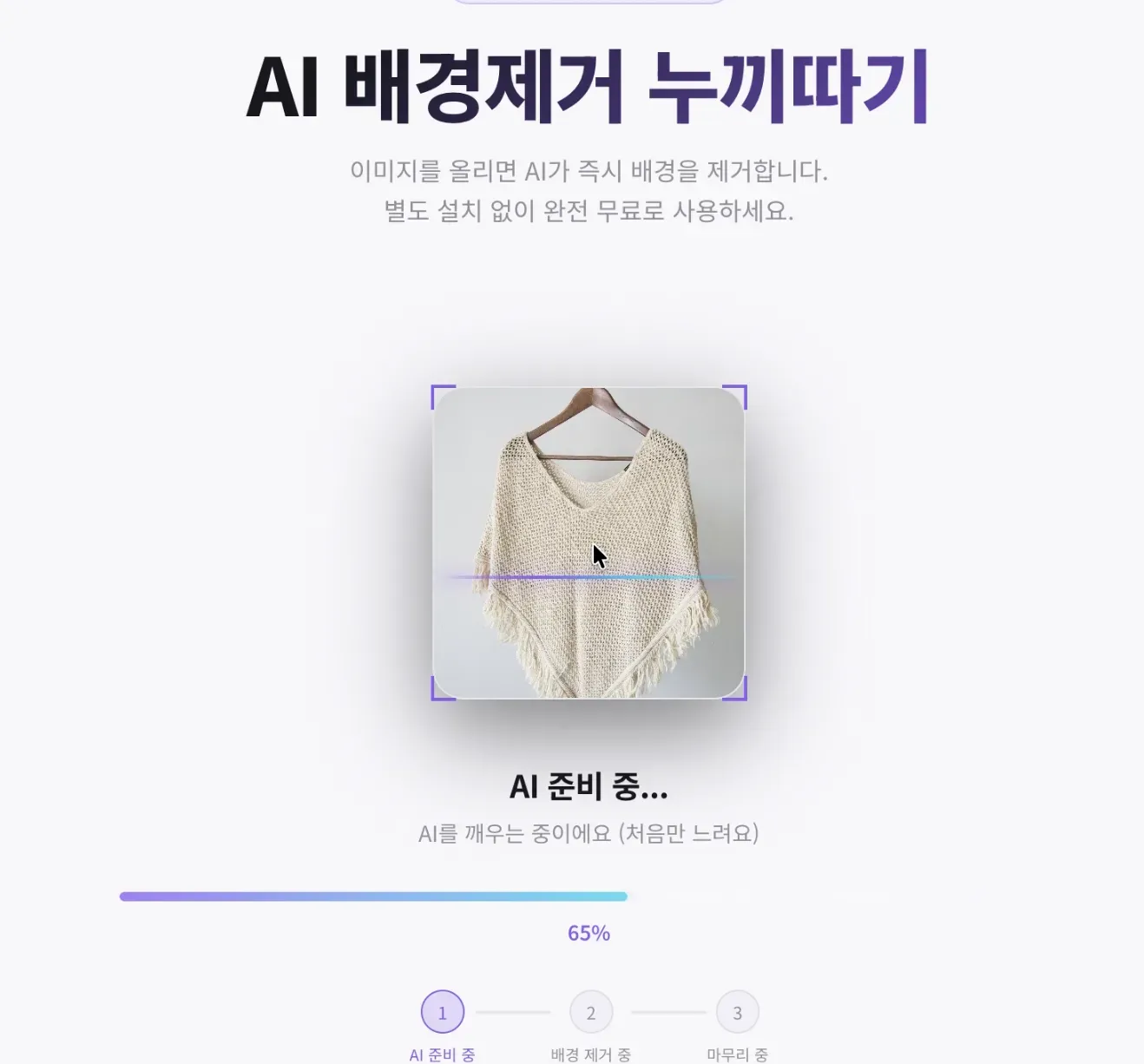
Complex fabric edges may still need review. Knitwear, lace, fringe, transparent fabric, and thin straps are more difficult than simple product shapes.
Step 3. Compare before and after
After processing, compare the original and result. Look closely at the outline, inside holes, straps, and shadow areas.
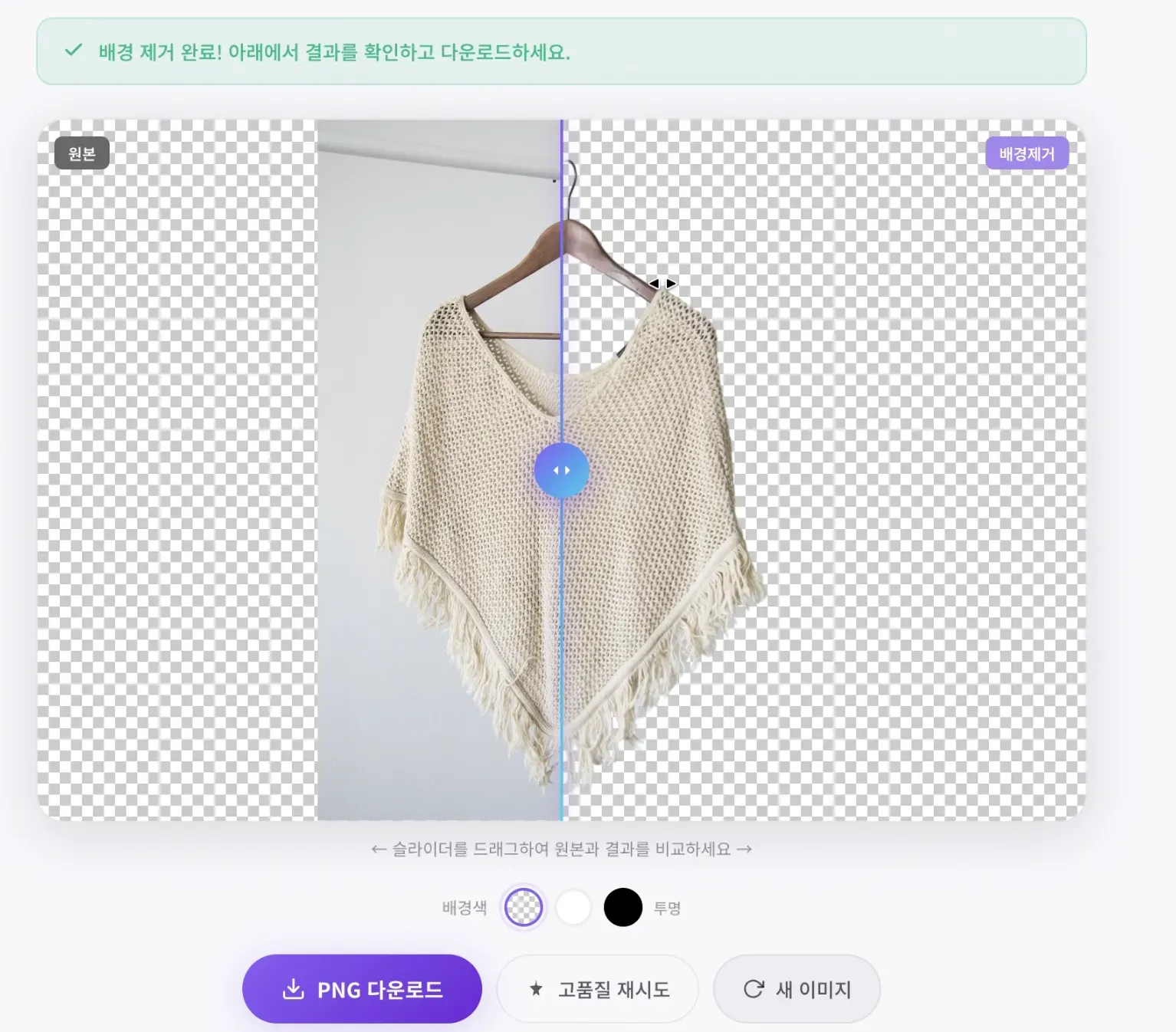
If the cutout is important for a main listing image, zoom in and use manual cleanup before downloading.
Step 4. Choose the output background
Choose the format based on your workflow:
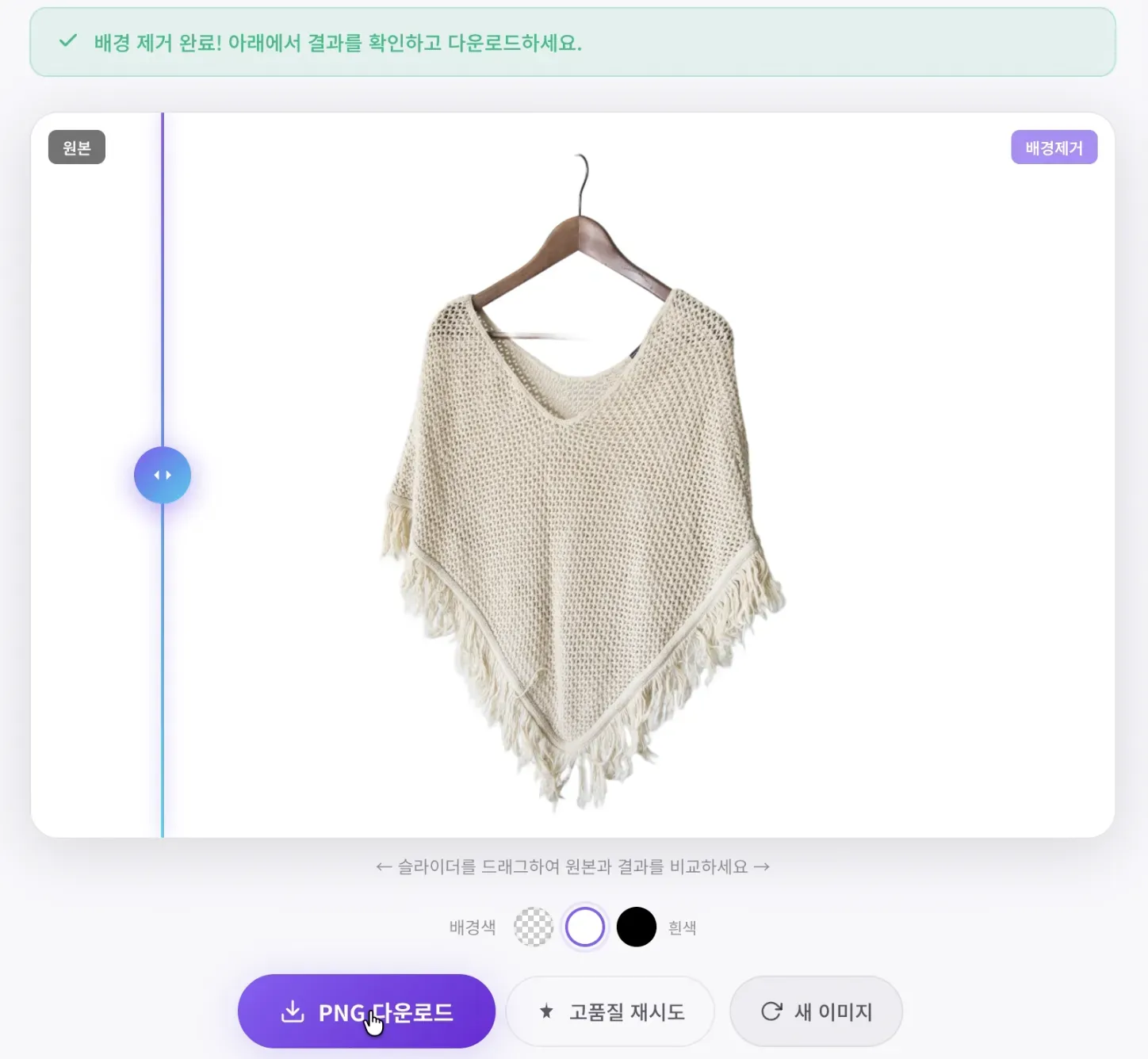
- Transparent PNG for design, banners, and later editing.
- White background for store listings and product pages.
- Compressed JPG/WebP for faster web pages when transparency is not needed.
Shooting tips for better AI results
Use contrast between product and background
A white shirt on a white wall is hard for AI. Use a darker or mid-tone background for light products, and a light background for dark products.
Avoid harsh shadows
Strong shadows can be interpreted as part of the product. Use soft light from both sides, or move the product away from the background.
Keep the whole product visible
Do not crop off sleeves, straps, handles, or bottom edges. AI cannot reconstruct parts that are not in the photo.
Use original images
Messenger-compressed images often lose edge detail. Use the original camera file when possible.
Optimize files before publishing
Large images can slow product pages. After creating the final image, compress it if the platform allows. Nukkimon also includes an image compressor for JPG, PNG, and WEBP.
Related tools and guides
FAQ
Is background removal enough for a professional product photo?
It helps, but lighting, focus, color accuracy, and platform rules still matter.
Should clothing products use a white background?
Often yes for listings, but some fabrics may need subtle shadow or contrast so the edge remains visible.
Can I process multiple product images?
Yes. Use batch background removal on desktop for up to 10 images.